
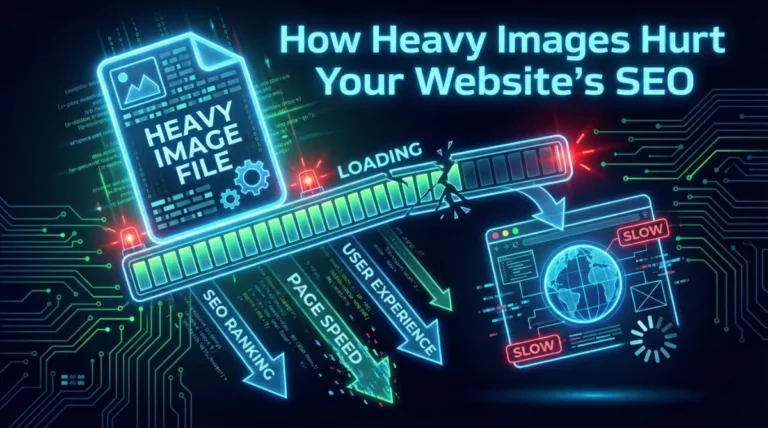
Have you ever opened a website that took forever to load… and you instantly closed it? You’re not alone. According to Google, 53% of mobile users leave a website if it takes longer than 3 seconds to load. Now here’s the kicker — in most cases, the biggest reason a website becomes slow is because of heavy images. And yes, this one factor can quietly destroy your rankings. Today, we’ll break down how heavy images hurt your website’s SEO, how to detect the problem, and what you can do to fix it without losing image quality.
Most website owners think, “My hosting is good, so I’m safe.” Not really. A single uncompressed image can be larger than your entire CSS + JS + HTML combined.
When we say heavy images, we usually mean:
What happens next?
And when users bounce, Google receives a strong signal that your website isn’t providing a good user experience — which affects rankings.

Slow loading speed isn’t the only reason heavy images are bad for SEO — the damage runs much deeper. Google’s ranking system is built around one simple principle: give users the best and fastest experience possible. When large, uncompressed images slow down your website, several SEO signals get triggered at the same time… and all of them are negative.
Here’s the breakdown:
Google evaluates three major experience metrics:
Heavy images delay LCP, cause layout shifts, and freeze interaction.
When Core Web Vitals drop Google pushes your pages down in rankings.
Users hate slow sites. If images take too long to appear:
Google sees this user behavior as a sign of poor experience.
As bounce rate increases organic rankings decrease.
Googlebot has a limited time to scan every website.
If pages take longer to load because of heavy images:
As a result, your site becomes slower to rank and update in search results.
SEO isn’t just about ranking — it’s also about what users do after landing on your site.
Heavy images negatively impact:
When users don’t interact Google assumes the page isn’t valuable.
A slow website can subconsciously feel:
This affects:
Heavy images don’t just “slow down a page.”
They interrupt nearly every ranking factor that Google cares about:
Page experience
Put simply:
Large images silently erode your SEO, even if everything else on your website is perfect.
Short answer: Yes — significantly.
Google has adopted mobile-first indexing, which means:
Your mobile version affects your rankings more than your desktop version.
Heavy images impact mobile SEO more because:
If your website loads slowly on mobile, search visibility will take a hit (even if desktop loads fine).

A slow website isn’t just an SEO problem — it’s a revenue problem.
Research shows:
What this means:
So fixing heavy images is like fixing leaks in your sales funnel.
Wondering if image sizes are dragging your rankings down? You can check easily.
Run your website through:
Inside the report, red flags include:
If these appear — you’ve got heavy-image SEO problems.
There isn’t a one-size rule, but experts agree on strong benchmarks:
Image Type | Ideal Size |
Blog / Feature Image | 150–250 KB |
Gallery / Product Images | 100–200 KB |
Hero / Banner Images | 250–500 KB (max) |
Background Photos | 300–700 KB (max) |
More importantly, use formats wisely:
The good news? You don’t need to be a developer, designer, or “tech person” to reduce heavy image sizes. Fixing image weight is one of the easiest SEO wins you can pull off — and the results show up almost instantly.
Here are the simplest ways to do it:
For most people, the fastest approach is using a browser-based image compression tool. This gives you instant compression without installing plugins or software — and without losing quality.
If you want a safe and private option, the UpCrawlMedia – Free Image Compressor Tool runs entirely on your device (client-side). Nothing gets uploaded or stored on any server, so your images stay secure and never leave your computer. It’s quick, web-based, and perfect when you just want to drag and compress without learning any settings. The only drawback right now is that bulk import isn’t available yet — but it’s already planned for a future update.
This is one of the most common SEO questions, and the answer depends on what the image is.
Use Case | Best Format | Why |
Blog / Featured Images | WebP | Highest speed advantage |
Photos / Realistic Visuals | JPG | Lighter than PNG |
Logos / Transparent Graphics | PNG | Sharp edges + transparency |
Thumbnails | WebP | Lightest weight |
Replacing old PNG/JPG images with WebP alone can significantly increase loading speed — and ranking.
Heavy images may look stunning, but they secretly drain rankings, conversions, and revenue. If your website loads slowly, users leave — and Google follows them. The faster your pages load, the higher your visibility and credibility online.
Want to improve your SEO instantly? Start by optimizing your images — it’s fast, simple, and has one of the highest ROI impacts across all ranking factors.
If you’re unsure where to start, Try the UpCrawlMedia – Free Image Compressor Tool — it compresses images directly in your browser (nothing is uploaded to any server), no limits, keeps full privacy, and preserves quality.
Yes — even one oversized image can slow a page dramatically because browsers load the full file before displaying it.
Not a direct ranking factor, but WebP improves speed, which directly improves SEO performance.
Use lossless compression first. Tools today perform smart compression — viewers can’t tell the difference.
At least once a month (or after major uploads or redesigns).
